Showing posts with label CCNA. Show all posts

01 December 2008

3 Books to Definitely Help You Pass CCNA Exam


You might be struggling to save money for joining the Cisco Networking Academy or other courses just to pass CCNA exam.

The Cisco Networking Academy is great, yet the other courses, well in my experience, I joined a CCNA course - not the Cisco academy - but to be honest the result was not as I expected.
I don't know if this happens in other countries or not, the instructors were not as qualified as they said, sure they passed the CCNA exam also but their experiences in handling Cisco devices were just poor.

So, not satisfied with the result, I browsed the internet and found these three books are valuable to help me passed the CCNA exam.

CCNA: Cisco Certified Network Associate Study Guide: Exam 640-802


The first book is CCNA study guide from Todd Lammle. If you search for CCNA guide from google then you'd find the name of Todd Lammle popping up everywhere.

Todd Lammle successfully authored books that can easily understand even by newbies, you can find all topics covered in the CCNA exam.

You can buy the book from amazon for US$ 31 for the new one and for the old one you can get for US$ 26.56.
I also provide the links to the amazon, you can click on the link above or the image to straightly go to the amazon site.

CCNA Practice Questions (Exam 640-802) (3rd Edition) (Exam Cram)


Now this is interesting, I bought this book because it is authored by Jeremy Ciaora, my all time favorite Cisco mentor.

Jeremy Ciaora authored successful series of video tutorials from CBTNuggets, and without any hesitation I bought this book, turns out great.

I practiced with questions provided in this book and the best part that it does not contain illegal materials according to certguard, I've checked.

I read the materials in the Todd Lammle's book and after I got myself deep in the subject I switched back to cram myself in exam questions in Jeremy Ciaora's book. This method works great for me.

Cisco Access Lists Field Guide


You might or might not need this book, but for me I had some difficulties in understanding about Cisco access list before the exam.

I bought this book and happily found that this book offers more than Cisco access list subject in CCNA exam.

I learned much more, time-based access list, encryption and IPSec, QoS, and others that help me in configuring my Cisco home lab and also preparing for the next CCNP exams.

Some people say that this book is not that great and blah blah, for me, I really like this book.

Those are the books that help me got through the CCNA exam, with budget of US$ 76.98 for new books and much less if you buy used ones in amazon you can prepare well for the CCNA exam.


Read more!

25 November 2008

Handy Commands for Cisco Initial Configuration


I found the following handy Cisco commands are very useful for initial configuration of Cisco devices.
I always use these commands to configure Cisco devices from fresh configuration.

router> enable
router> configure terminal
router (config)# no ip domain-lookup

The no ip domain-lookup is very useful, what this command does is tell the Cisco device not to do a domain lookup when you mistype something in the CLI. For example if you do this without the no ip domain-lookup:

router# pign
Translating "pign"... domain server (255.255.255.255)
%unknown command or computer name, or unable to find computer address


The Cisco device will try to find the computer name of pign, it doesn't know that you mistyped ping. This process could take a very long time.
If you apply the no ip domain-lookup, the Cisco device won't try to do the domain lookup.

The second command is the alias command. This command makes an alias of a command that you use frequently.
For example you often use the command show ip interface brief, you can make an alias of it to be "ship".

router (config)# alias exec ship show ip interface brief

You configure it by entering alias first, followed by which mode the command resides in - in this example the show command resides in the exec mode - type in the alias for the command, then you enter the full commands that you want to make alias.
Now you just have to type in ship instead of the long show ip interface brief command.

Next command is useful when you connect to the Cisco devices and you need a very long time to configure it.
The Cisco devices have a default time of how long you're allowed to get connected to them. Sometimes you don't want to reconnect again all the time, but mind you that the time limitation is set because of security concern.

router (config)# line vty 0 4
router (config-line)# no exec-timeout

The above commands tell the router to give you all the time that you need when configuring the router from the telnet session, it won't cut your connection. You can also configure it for the console connection.

Last one is my favorite one, you know when you're configuring a Cisco device sometimes you'd get some notifications from the device which is great, it tells you things going on in it.
But it gets annoying when you're trying to configure it and the notifications just cut down your halfway written command.
The following command tells the router to write back the command you entered before the notifications cut it:

router (config)# line vty 0 4
router (config-line)# logging synchronous

I hope these commands are useful for you.

Read more!

21 November 2008

Handy Cisco Command - Interface Range


There are many handy Cisco commands that you can use to help you in configuring Cisco devices, these commands well not exactly secret commands but you might not get it from the CCNA curriculum.

One of these handy commands I already posted it at my previous post. But I want to cover it again in case you missed the post.

This one is the interface range command. What this command does is to select a range of interfaces and apply the same commands to them.
This is very handy especially in a Cisco switch environment where you might want to set some ports to be access ports or apply the same security to those ports instead of doing it one by one for each interface.

For example, I want to select the interfaces fastethernet 0/2 to 0/8, with the interface range command I'd just do it like this:

2950> enable
2950# configure terminal
2950 (config)# interface range fa0/2 - 8
2950 (config-if-range)#

There, you notice that instead of displaying 2950 (config-if)# where you can get when you issue interface fa0/2, you'd get the 2950 (config-if-range)# prompt that shows you that you are selecting a range of interfaces.

When you want to select interfaces that are not in sequential order, like when you want to select interfaces fa0/2 to fa0/8, then interfaces fa0/10 to fa0/16, and the interface fa0/24 then you can do it like this:

2950 (config)# interface range fa0/2 -8, fa0/10 - 16, fa0/24
2950 (config-if-range)#

I'll be posting more handy Cisco commands again next time, hope this one is useful for you.

Read more!

12 November 2008

Configuring WPA and WPA2 on Cisco Aironet


The last post I talked about configuring WEP authentication on Cisco Aironet wireless access point.
Now I want to configure WPA and WPA2 to give more strength in the wireless security.

Just for a note I put an image of padlock on the last post and now I give a picture of a vault to give the image of stronger security.
You know what I mean, padlock versus vault, oh just forget it.

Back to the topic, when first posting about WEP I said that WEP encryption is weak, you better use encryption like WPA and WPA2.

WPA gives better key management and stronger cipher encryption. For those who don't know about cipher, it's kinda algorithm for encryption and decryption, we'll be configuring the cipher when dealing with WPA and WPA2. WPA uses what is called TKIP or Temporal Key Integrity Protocol for the cipher encryption.

WPA2 is even better than WPA, it uses a stronger encryption called AES or Advanced Encryption Standard, it creates fresh sessions key so every packet sent are encrypted with different key.

One other thing to know, the WPA and WPA2 come with two flavors, the Personal and Enterprise. In enterprise mode we need to have authentication server such as RADIUS, I don't have RADIUS server currently so I'll skip to the Personal mode instead.
The personal mode of WPA and WPA2 have what is called WPA-PSK the WPA Pre-Shared Key, we have to configure the WPA-PSK on both the Access Point and the clients.

So get on to the configuration of WPA first for my SSID Guest on VLAN 40:

1240AG> enable
1240AG# configure terminal
1240AG (config)# interface dot11radio 0
1240AG (config-if)# encryption vlan 40 mode ciphers tkip
1240AG (config-if)# ssid Guest
1240AG (config-if-ssid)# vlan 40
1240AG (config-if-ssid)# authentication open
1240AG (config-if-ssid)# authentication key-management wpa
1240AG (config-if-ssid)# wpa-psk ascii your-key-here

That's it you've successfully configured WPA on Cisco Aironet Wireless Access Point. Just configure the ciphers to tkip, set the authentication to open, use the wpa key management and the great thing in WPA is that we can set ascii characters as the key instead of hexadecimal like we did on configuring WEP.

The difference of WPA with WPA2 configurations is just some small things. We have to set the ciphers to AES and the key management to WPA version 2. Let's get started to configure WPA2 for my SSID Admin on VLAN 30:

1240AG> enable
1240AG# configure terminal
1240AG (config)# interface dot11radio 0
1240AG (config-if)# encryption vlan 30 mode ciphers aes-ccm
1240AG (config-if)# ssid Admin
1240AG (config-if-ssid)# vlan 30
1240AG (config-if-ssid)# authentication open
1240AG (config-if-ssid)# authentication key-management wpa version 2
1240AG (config-if-ssid)# wpa-psk ascii your-key-here

Don't forget to check out how to set up Wireless Network and the SSID on my last posts. Cheers.

Read more!

10 November 2008

Configuring WEP Authentication on Cisco Aironet


The wireless network you installed for your LAN can mean that you are directly exposing your network to the public.

Anyone can use a wireless sniffer and view all the traffics going between the wireless access point and the clients. That's why you need to add security in your wireless LAN.

This post will talk about WEP or Wired Equivalent Privacy, the name states that your wireless network will be as safe as your wired network but not in reality.
There are many WEP decryption tools available out there. Just capture some packets using wireless sniffer and use the the decryption tool to find out the WEP key.

So we know the WEP is not secure, nevertheless I want to show how to configure WEP authentication for Cisco Aironet wireless access point.

WEP uses 40 bits encryption key (10 hexadecimal characters) or 128 bits (26 hexadecimal characters).
Don't get a false sense of security with the length of the encryption, the longer the encryption key just mean the more packets you need to capture and more time to decrypt them.

There are two types authentication for security according the IEEE 802.11 committee, the shared-key and open authentication.

In a shared-key authentication, the access point will send a challenge packet to the client and the client must encrypt the packet with with the right key (WEP key) then return it to the access point.
This method is not secure since everything sent in clear text.

The other method is open authentication, just like the name the authentication is open or you can say no authentication required.
But when open authentication used with the WEP, the WEP key will be used to encrypt all data before sending them.

I have to admit, I get a little confused when first time configuring authentication in Cisco Aironet wireless access points since no one thought me so I had to browse all the configuration examples.

It's easier to use the web interface of the access point, but I want to configure it through CLI.
To configure WEP authentication you should do this by entering the dot11radio interface:

1240AG> enable
1240AG# configure terminal
1240AG (config)# interface dot11radio 0

Create the SSID and associate it with VLAN if you haven't done it:

1240AG (config-if)# ssid Guest
1240AG (config-if-ssid)# vlan 40
1240AG (config-if-ssid)# authentication open
1240AG (config-if-ssid)# exit

Configure the WEP authentication:

1240AG (config-if)# encryption vlan 40 mode wep mandatory
1240AG (config-if)# encryption vlan 40 key 1 size 128bit 12345678901234567890123456 transmit-key

The above first command tell the Cisco Aironet to do WEP encryption on vlan 40 (SSID Guest) and set it as mandatory.
If you replace mandatory with optional, the use of WEP encryption depends on the client configuration, they can choose to encrypt the packets or not.

The second command tells the access point to use the WEP encryption key of 128 bit with the above 26 characters key. You can use whatever key you choose as long as it is hexadecimal characters (0-9 and A-F).

Don't forget to set up the access point as I did on the last post.

Read more!

08 November 2008

Configuring Cisco Aironet in Home Lab - Part 2


Now it's time to configure Cisco Aironet Wireless Access Point for Cisco home lab.

What I'm going to do first is to configure the connectivity between the Cisco Aironet 1240AG wireless access point to the Cisco 2950 switch.

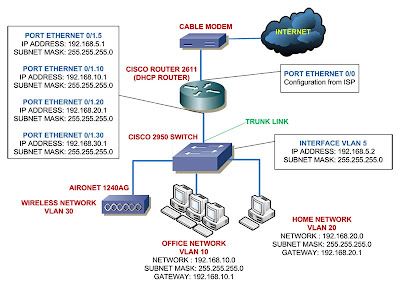
Here's the closer look of the network diagram of the wireless access point and the switch:


The network will be using VLAN 5 (192.168.5.0 network) as the native VLAN and the rest of the VLANs will be used for the SSIDs.

There's an interface called BVI or Bridge-group Virtual Interface, what this interface does is bridge all of the interfaces in the access point - the wired and wireless interfaces - so you can use the interface BVI IP address to manage all of those interfaces.

In Cisco Aironet 1240AG wireless access points, you have 1 interface fast ethernet port, 1 console port, 1 dot11radio 0 for the 802.11G, and 1 dot11radio 1 for 802.11A.

In this configuration I only going to configure the dot11radio 0 for the 802.11G wireless network since I only have the antennas for the 802.11G.
You can configure both 802.11A and 802.11G if you want.

First we configure the interface BVI 1 IP address:

1240AG> enable
1240AG# configure terminal
1240AG (config)# interface bvi 1
1240AG (config-if)# ip address 192.168.5.3 255.255.255.0
1240AG (config-if)# no shutdown

Now set the native VLAN (VLAN 5) to the wireless access point, we have to configure the native VLAN on both of the fastethernet sub interface and the dot11radio 0 sub interface:

1240AG (config)# interface fastethernet 0.5
1240AG (config-if)# encapsulation dot1q 5 native
1240AG (config-if)# interface dot11radio 0.5
1240AG (config-if)# encapsulation dot1q 5 native

Next is to set up the SSID starting from SSID for admin and associate it with VLAN 30.
We need to configure the SSID on the dot11radio 0 interface first then configure the VLAN on the dot11radio 0.30 sub interface and fast ethernet 0.30 sub interface.
Also I set up the SSID for open authentication first.

1240AG (config)# interface dot11radio 0
1240AG (config-if)# ssid ADMIN
1240AG (config-if-ssid)# vlan 30
1240AG (config-if-ssid)# authentication open
1240AG (config-if-ssid)# end

1240AG (config)# interface fastethernet 0.30
1240AG (config-subif)# encapsulation dot1q 30
1240AG (config-subif)# bridge-group 30

1240AG (config-subif)# interface dot11radio 0.30
1240AG (config-subif)# encapsulation dot1q 30
1240AG (config-subif)# bridge-group 30

The bridge-group command allows you to group interfaces and bridge nonrouted traffic among the interfaces.
In this example traffic from dot11radio 0.30 sub interface to fastethernet 0.30 sub interface and vice versa.

Note: If you configure the SSID on the global configuration mode, the SSID will be both in the dot11radio 0 and 1.

Do the same with the SSID for guest and associate it with VLAN 40:

1240AG (config)# interface dot11radio 0
1240AG (config-if)# ssid GUEST
1240AG (config-if-ssid)# vlan 40
1240AG (config-if-ssid)# authentication open
1240AG (config-if-ssid)# end

1240AG (config)# interface fastethernet 0.40
1240AG (config-subif)# encapsulation dot1q 40
1240AG (config-subif)# bridge-group 40

1240AG (config-subif)# interface dot11radio 0.40
1240AG (config-subif)# encapsulation dot1q 40
1240AG (config-subif)# bridge-group 40

Next step is to configure the switch port connected to the wireless access point as a trunk port with native VLAN 5.
I already posted about how to do this on the last post.

Also if you are going to use dynamic IP address, make sure you have configured router as DHCP server that serving clients for VLAN 30 and 40.

Right now if you have no problem pinging the switch and router from the wireless access point, your access point is broadcasting SSID and giving IP address from router for any client joining the SSID.

The SSIDs are not secure since they use open authentication, next time I'll configure it with stronger authentication.

Read more!

07 November 2008

Configuring Cisco Aironet in Home Lab - Part 1


I've configured my Cisco home lab with a router that connects to cable internet and a switch with VLANs.
Now it's time to add a new device to the Cisco home lab, a Cisco Aironet 1240AG wireless access point for wireless connection.

And by the way, the image on the left is not an official logo from Cisco or anything, I just made that up.

I won't configure anything fancy this time, only give basic administration configuration and set up an open SSIDs also associate the SSIDs to VLANs.

Since I want to configure two SSIDs - one is free for all SSID with no authentication and the other one with authentication - for the wireless network, I need to configure additional VLAN on the switch.

I have already the VLAN 30 for the wireless network and want to add VLAN 40, so in total there would be 5 VLANs in my Cisco home network lab.

I made a network diagram with Cisco Aironet 1240AG wireless access point added in the picture below:

So lets start the configuration on the next post, there are some steps to complete this Cisco home lab network diagram if you haven't done so.

Starting from the wireless access point I'm going to configure the basic administration configuration such as the access point's management IP address, SSIDs and associate them to VLANs, optionally configure the authentication security options for the SSIDs, and establish trunk connection to the switch.

For the switch I'll configure VLANs and the trunk connection to the access point and the router.

Last in the router I'll configure interVLAN routing, DHCP server for each VLAN, and other configurations like I've posted before.

Read more!

02 November 2008

The Danger of Broadcast Storm and the Solution


If you've taken the Cisco Academy program or been in the network world for a while, you must have heard about broadcast storm.

Broadcast storm is a state in a network where a frame broadcast in a switch environment is continually being flooded through the network.

This is mostly happen in a switch environment where you have redundant connection between switches, remember that routers segment or isolate broadcast between networks.

Redundant connections are important if you want to create a backup path between switches. If one path fails the other will take over.
This won't work out with switches that don't have any loop avoidance mechanism.

This is how a broadcast storm can happen, I have two switches connected with redundant links and one switch connected to a client and the other switch connected to a server.

Then the client sends a broadcast, say an Address Resolution Protocol or ARP to find out where the location of the server like this, pay attention to the red arrow, pretend that the arrow is a broadcast frame sent by the client.


Remember the rule of a switch, a switch forwards a broadcast frame to all ports except the port where it receives the request.

The Switch A receives the frame and forward it to the two links it has:


The broadcast frame received by the Switch B from two different ports and forward it again to other ports including the port where the Server is attached.

But it doesn't stop there, the frames are flooded again back to Switch A and back to the client.


From now on, back again to picture 2 then 3 and so on, this will keep going on forever until you shutdown the network.
This condition can also be called switch loop and it leads to broadcast storm.
Most likely you can find a question about this in the CCNA exam.

Luckily Cisco switches have loop avoidance mechanism called Spanning Tree Protocol or STP.

What STP does is eliminating loops in the network while allowing redundant links, the switches in the network will send out BPDU or Bridge Protocol Data Unit.

BPDU is like a boomerang send out to all ports in the switch. The BPDUs will travel all over the network and when the switch receive the BPDU it sent, then the switch knows that switch loop is occuring in the network and will block one of the ports where the loop occured.

Actually there's a set of session needed just to explain STP, there's even books specialized to explain STP considering that STP is very important in a redundant network.

STP eliminates redundant links in your network that's it, but if you don't carefully design your network even if you're using Cisco devices, your network will someday experience a melt down.

There's a great article about a network meltdown in a hospital related to STP that you can read here. In a hospital!! Man, that's serious business, we're talking about people lives here.
So the case study can be a valuable resource for you, just read it.

This happened to me once when I went on a client. They're just a small office kinda like SOHO, they're not using Cisco devices, they just using network devices from Linksys and D-Link.

So they called me and said for some reason the network went down.

After checking the network for a while, no problem with the configuration and the cabling but still no connectivity.
Then after tracing all the cables - it was not exactly a neat cabling they have there - I found that one cable was connected end to end to the same switch which created the broadcast storm.

So the moral of this story, it's very easy to take down an entire network with just a single network cable, especially if the networks are using average home usage network devices .

No need to say that it is very important to keep the physical security of your network devices. You can't trust the employees again nowadays.

Read more!

30 October 2008

Adding Switch to Cisco Home Lab - Part 5


Configure Router as DHCP Server for VLANs

Now this part of configuration is the most fun part of all. I just love the way that one router accepts requests from clients on different VLANs (with different subnets), and the router gives away the addresses based on what VLAN a client resides.

That's just cool, your average home usage routers can't do this kind of stuff, most of the average home usage routers can do is just give away IP addresses for one network.

At the previous post, I posted about how to make a router to be DHCP server. Now this post is similar but I'm going to make the router to give away IP addresses for clients on different networks.

The configuration is also the same, but now I'm going to make several IP DHCP pool. The amazing thing is that the router can differentiate each client request for IP address.

The router listens to the requests, which request comes from which sub interface (subnet or VLAN).
Then the router takes the available IP address from the DHCP pool and tells the client that it's now using this IP address.

At this example I'm using four networks in my local area network. I won't be giving away the addresses for the VLAN 5 since I'm only going to assign the IP addresses for management purpose only - I'll assign the addresses statically on the networking devices.
The 3 networks left, the VLAN 10, 20, and 30 IP addresses are configured using DHCP server.

Same as before, you need to exclude the IP addresses that you don't want to give out through DHCP. I conserve the first ten addresses for each network, I probably need it for something else in the future.

router> enable
router# configure terminal
router (config)# ip dhcp excluded-address 192.168.10.1 192.168.10.10
router (config)# ip dhcp excluded-address 192.168.20.1 192.168.20.10
router (config)# ip dhcp excluded-address 192.168.30.1 192.168.30.10

Now the DHCP will give out addresses to the clients starting from XXX.XXX.XXX.11

Next is to configure the DHCP pools for respective VLANs:

router (config)# ip dhcp pool OFFICE
router (dhcp-config)# network 192.168.10.0 255.255.255.0
router (dhcp-config)# default-router 192.168.10.1
router (dhcp-config)# dns-server xxx.xxx.xxx.xxx xxx.xxx.xxx.xxx

router (config)# ip dhcp pool HOME
router (dhcp-config)# network 192.168.20.0 255.255.255.0
router (dhcp-config)# default-router 192.168.20.1
router (dhcp-config)# dns-server xxx.xxx.xxx.xxx xxx.xxx.xxx.xxx

router (config)# ip dhcp pool OFFICE
router (dhcp-config)# network 192.168.30.0 255.255.255.0
router (dhcp-config)# default-router 192.168.30.1
router (dhcp-config)# dns-server xxx.xxx.xxx.xxx xxx.xxx.xxx.xxx

You can set the dns-server option to point to up to 6 dns servers.
The default-router command tells the clients to set the ip default gateway to point to the router's sub interface.

At this point, if you can ping all the sub interfaces of the router from the switch, the router will give IP addresses for requests coming from the clients for DHCP service.

The router differentiates the requests like this, if a request coming from the sub interface ethernet 0/1.10, then the router will give the IP address according to the ip address on that interface (192.168.10.0 network).

After this you need to configure the router for internet connection, if you haven't done it before.
Remember to apply access-list that allows all networks you have in the LAN to be translated by the NAT.
Read more!

29 October 2008

Adding Switch to Cisco Home Lab - Part 4


Configure Router for InterVLAN routing

If you only configure VLAN on the 2950 or other layer 2 switches, the clients can only communicate with other clients within the same VLAN.
If you want them to be able to communicate with other clients on different VLANs, then you need to configure a router for interVLAN routing.

Configuration of router for interVLAN routing often called router on a stick. The reason is the clients that want to communicate with other clients on different VLANs need to go through the router first and the router will route the packets to the appropriate VLANs back through the same line.

The disadvantage of this is that single line going to the router will be filled by requests from one VLAN going to other VLAN, and the router will be set for handling the routing for this.

No problem for the small LAN, but if you have a huge number of clients, you need to consider using Layer 3 or multilayer switches (Cisco Catalyst 3550 series or above) for interVLAN routing.

The concept of layer 3 switch routing is something that you'd find on the CCNP level, not the CCNA.
I don't have layer 3 switch, the cheapest one I can find in my local area is more than $600 yikes. But the configuration is so easy, I'll only want to give you some snippets later.

For now lets configure the router to do interVLAN routing.

We know that routers have limited amount of physical interfaces right? The 2611 have a default of 2 ethernet interfaces.
One interface is going to the internet and the other is supposedly connected to the internal LAN.
How come one interface can handle multiple VLANs a.k.a. multiple networks with different subnets.

There's a genius way to get around this, that is by using logical sub interfaces. That one port can be logically devided into many sub interfaces.
Each sub interface will handle one VLAN/subnet.

NOTE:

Previously the interVLAN routing can only be done by routers with Fast Ethernet interfaces (100 Mbps) and not intended for Ethernet interfaces (10 Mbps) due to small bandwidth consideration. But now we can configure it on the ethernet ports also.

Before configuring the router, lets see again how the network diagram looks like:

So we need to define four sub interfaces and the respective IP addresses, we also need to define the VLAN assigned to the sub interface using encapsulation dot1q VLAN_NUMBER, where the VLAN_NUMBER is the VLAN ID for the sub interface.
You need to define the VLAN first on the sub interface, then you can assign IP address there.
You don't need to assign IP address for the main interface ethernet 0/0 but do no shutdown and the sub interfaces will automatically apply the same no shutdown.
here's how we configure them:

router> enable
router# configure terminal
router (config)# interface ethernet0/0
router (config-if)# no ip address
router (config-if)# no shutdown
router (config-if)# interface ethernet0/0.5
router (config-if)# interface ethernet0/1.5
router (config-subif)# encapsulation dot1q 5
router (config-subif)# ip address 192.168.5.1 255.255.255.0
router (config-subif)# interface ethernet0/1.10
router (config-subif)# encapsulation dot1q 10
router (config-subif)# ip address 192.168.10.1 255.255.255.0
router (config-subif)# interface ethernet0/1.20
router (config-subif)# encapsulation dot1q 20
router (config-subif)# ip address 192.168.20.1 255.255.255.0
router (config-subif)# interface ethernet0/1.30
router (config-subif)# encapsulation dot1q 30
router (config-subif)# ip address 192.168.30.1 255.255.255.0

You can give sub interface number up to 4294967295, the reason is it gives you the flexibility on naming the sub interface to match the VLAN ID. You can easily identify the sub interface e0/1.5 is for VLAN 5 and so on.

Oh, don't forget to do the no shutdown command on the main interface ethernet 0/1, it will also do no shutdown for the sub interfaces.

Now if you can successfully ping the interface VLAN 5 on the switch (192.168.5.2 in this example) then you are done configuring the router for interVLAN routing.

For configuring interVLAN routing on Layer 3 switches you have to make interface VLAN for every VLAN that you want to route and give them IP addresses.

Layer3Switch> enable
Layer3Switch# configure terminal
Layer3Switch (config)# interface VLAN 5
Layer3Switch (config-if)# ip address 192.168.5.1 255.255.255.0
Layer3Switch (config-if)# no shutdown

Do this for every VLAN that you want to route, you don't need to configure sub interfaces on the router.
The layer 3 switch will do the routing for the VLANs without ever need to send anything to the router first.
But you need to activate the ip routing feature on the switch first, if it's not already activated using:

Layer3Switch (config)# ip routing

Very simple right?

Last things left is to configure the router for additional configuration, DHCP server for each subnet, connect to the cable internet, and other details on the next post.

Read more!

28 October 2008

Adding Switch to Cisco Home Lab - Part 3


Assigning Switch Ports to VLANs

After configuring VLANs on Cisco switch, now we need to assign the switch ports to VLANs.

We need to assign which ports should be in which VLAN, remember VLAN = broadcast domain = subnet.
So before making your own VLANs, consider the IP addressing scheme and which computer should be in which broadcast domain or network.

Next step is to configure the trunk port to connect to the router and access port to connect the switch ports to our clients' PCs or other network devices.

The trunk port is needed to carry all VLANs or selected VLANs (you can decide which VLANs are allowed to cross the trunk link) in one port and the native VLAN is assigned to "tag" untagged frames with the ID of the native VLAN.
You should also configure trunk if you want to connect a switch to another switch, you have to configure trunk port on both switches.

For the access port, one access port can only be a member for 1 VLAN, anything plug in to the access port will be assign with the configured VLAN ID.

You need to remember though, the devices attaced to the switch ports don't know anything about VLAN, it is only something the switch knows.
Before a frames are sent to the clients, the VLANs tags are stripped from the frames.

In this example I configure the FastEthernet port 0/1 to be the trunk port that connects to the router.

C2950> enable
C2950# configure terminal
C2950 (config)# interface fa0/1
C2950 (config-if)# switchport mode trunk

At this point you already configured the port FastEthernet or fa 0/1 to be trunk port.
There are two encapsulation method for trunking, the ISL which is proprietary method from Cisco - only for Cisco devices and the 802.1Q or dot1q for short which is the multi-vendor encapsulation method.

Since the 2950 switches only support dot1q method you don't need to define it again but if your switch support both methods then you need to configure it using switchport trunk encapsulation dot1q or you can replace the dot1q with isl if you want to use ISL.

Next is to define the native VLAN and if you want to, you can define which VLANs are allowed to cross that trunk port:

C2950 (config-if)# switchport trunk native vlan 5
C2950 (config-if)# switchport trunk allowed vlan add 5, 10, 20, 30

You can add or remove vlans on the trunk port, by default the trunk will carry all VLANs.

Finished with the trunk port configuration, now we assign ports to the VLANs we created. You can assign the ports one by one like this:

C2950 (config)# interface fa0/2
C2950 (config-if)# switchport mode access
C2950 (config-if)# switchport access vlan 10

Or you can define a range of interfaces at once, say I want to configure port 0/2 to 0/8 as the access port for VLAN 10, then I just have to do this:

C2950 (config)# interface range fa0/2 - 8
C2950 (config-if-range)# switchport mode access
C2950 (config-if-range)# switchport access vlan 10

Do the same thing with the VLAN 20 - the home network VLAN:

C2950 (config)# interface range fa0/9 - 16
C2950 (config-if-range)# switchport mode access
C2950 (config-if-range)# switchport access vlan 20

Very handy command right?

One trick I can give you, if you want to configure some ports that are not in sequential order, like you want to configure port 2 to 5 and 10 to 15 and port 24, you can do it like this:

C2950 (config)# interface range fa0/1 - 5, fa0/1 - 15, fa0/24

There, you successfully created access ports for VLAN 10 and 20. For the VLAN 30 or the VLAN used for wireless network, I need to safe it for another time since configuring wireless network with Cisco devices takes some tricks.

Now we're done with the Cisco switch configuration, next thing to do is configuring the router to accept VLANs and be DHCP server for all the networks.

Read more!

Adding Switch to Cisco Home Lab - Part 2


Configuring VLANs

I'll start the configuration of adding switch to my Cisco home lab by configuring the switch first. At the previous tutorial series, I posted about how to connect Cisco router to cable internet, and now here's how the network will look like again when added a switch to it:

The network will have 4 VLANs, with the VLAN 5 acting as the native VLAN.
By default, the native VLAN of Cisco switches is VLAN 1, you might want to change the native VLAN from VLAN 1 to other VLAN since there a security concern about this.

You can read a nice article about native VLAN security concern from cisco.

In 2950 switches, you have to type in these commands to create VLANs:

C2950> enable
C2950# configure terminal
C2950 (config)# vlan 5
C2950 (config-vlan)# name MANAGEMENT
C2950 (config-vlan)# vlan 10
C2950 (config-vlan)# name OFFICE
C2950 (config-vlan)# vlan 20
C2950 (config-vlan)# name HOME
C2950 (config-vlan)# vlan 30
C2950 (config-vlan)# name WIRELESS

You can verify that you successfully created the VLANs by issuing this command:

C2950# show vlan

Now to set the VLAN 5 as the native VLAN and assign it to be the native VLAN, we should do this:

C2950 (config)# interface VLAN 5
C2950 (config-if)# ip address 192.168.5.2 255.255.255.0
C2950 (config-if)# no shutdown

By issuing the no shutdown command, the VLAN 1 will be automatically shutdown and replaced by the VLAN 5.
Assigning an IP address to the VLAN other than VLAN 1 will make that VLAN as management VLAN so your switch can be accessible for configuration using telnet.
You can only alter the Native VLAN from VLAN 1 to other VLAN but you can't delete the VLAN 1.

Next thing you need to do is assigning those VLANs to the switch's ports.

Read more!

27 October 2008

Adding Switch to Cisco Home Lab - Part 1


So I was sitting and thinking about what to post next in my blog, and hey why not continuing on the last posts about setting up Cisco home lab.

The network topology might not be the best topology for CCNA home lab, but the configuration should be similar with any other topologies.

Let's take a look at the last network topology where I connected 2611 router to the cable internet:
I'm going to add a Cisco switch, 2950 Cisco switch that is. And I'll be adding some VLANs to it, I'll separate the PCs in my LAN into four different networks.

  • VLAN 5 as the native VLAN - 192.168.5.0 network
  • VLAN 10 for the office - 192.168.10.0 network
  • VLAN 20 for the home - 192.168.20.0 network
  • VLAN 30 for wireless - 192.168.30 network
In network diagram view, you can see it like this:
This is just a very simple network diagram, but most SOHO networks are typically look like this, maybe with some additional switches here and there.

You can see above the details of the network with exception of the wireless network, I'll leave the wireless network configuration for later posts but still provide a VLAN for wireless connectivity.

Same with the previous posts, I'll do the configuration on series and hopefully in the end I can make a full Cisco home lab scenario for Cisco certification exam.

Read more!
7 Reasons to Choose Cisco for Home or SOHO Network


After building my own Cisco home lab, I feel very satisfied with how they perform for my LAN.

So let me poison your mind, I'm going to show you why I think home network geeks - like my self - and SOHO network should consider to replace the network devices they have now with Cisco networking devices.

Actually Cisco has an article called Why Enterprise Choose Cisco, but frankly I don't quite understand what they're trying to say so I figured 7 reasons that I can think of why choose Cisco for Home or SOHO network.

1. Cisco Certification

The number one reason is of course to smooth your way in passing Cisco Certification exams. You can get away not having Cisco home lab for the CCNA exam, but above that, especially if you don't have a direct access to the real Cisco devices, at least you need to rent Cisco lab.

2. Wide Range of Products

Not just apply to Cisco, every vendor has wide range of products to offer, routers, switches, VPN concentrators, wireless, firewalls, you name it.
But wouldn't it be nice to have a room in your home or SOHO with that cool Cisco logo on all of the devices.
Imagine clients walking down your office and see the network rack or at least the picture of it, and shockingly say what the heck is that???
Oh, that's just our small data center you reply.
Surely make your business seems reliable enough or what??

3. Scalability

This is what I really like from Cisco, you can easily upgrade everything, well almost everything in the devices.
Say you bought a 2611 router, the chassis only, and later you found out you need WAN connectivity, DSL connection, additional switch ports, VPN, and even Voice card for VoIP, etc.
You can just buy the modules and slide in to your router, not all of them of course, but as much as the router permits.
The complete reference for the modules supported by 2600 routers can be found here.

You can buy and upgrade the IOS according to your needs. Routers such as linksys also can be upgraded (the firmware), many third party firmwares are also available, but the Cisco IOS can do much more functionalities no doubt.

Need more power for the Cisco routers, no problem, you can always upgrade the RAM, now this is hard to do on average home usage routers. You can easily slide in a bigger RAM in the router just like PCs.
My default amount of 2611 RAM provides me a great connectivity to the internet compared to my old router.
You know if you connect lots of clients to the internet, the router maintains a NAT table and if the RAM is not enough it should affect the connectivity.

4. Managabililty

Having Cisco devices in your LAN is like being a tyrant in your own kingdom. You can pretty much do anything in it at your wish.
Kick out a client, limit the connection to nearly bytes per second and let them come to you and beg for mercy.
No no that's not me.. I think. I don't know about you but controling network devices from the CLI is like having an unlimited power over the LAN.
You can configure anything right from nothing and seeing it connects successfuly, I'm telling you nothing beats the feel of it.

5. Reliability

No question about reliability for Cisco devices. In fact I just knew that Cisco Systems Sets Guinness World Record with the World's Highest Capacity Internet Router.

Now get this, with the show version command in the device you can view the uptime right? how long the router is up and running without shutting down or reloading.
A company has a record of about 10+ years, 10 years, man, you should see it here or search in google for "cisco 10 years uptime".

6. Enterprise Class Features

Depends on the router capabilities and the IOS image you have, you can have an enterprise class features in your LAN.
Advance firewall system, Intrusion Detection System, Multicast handling, VoIP, all of that you can have just by upgrading your Cisco routers later when your company got bigger.

7. Cost

No, I'm not talking about the cost of buying Cisco devices, the price for the new ones are insane for home usage and SOHO. But you can always buy the used ones from ebay or other used Cisco resellers.
What I want to say is the cost that you can save if you bought Cisco devices. Return of Investment what smarter people would say.

So the reasons are good enough for you? If you're working in a SOHO you might be able to persuade the finance department to upgrade the network devices you have now.

But you're just students or a techies want to get deeply intimate with Cisco, how could you ever afford them.
If you really really want it why not? Take a look at me, I'm currently just about a quarter of century old, living in a country where you wouldn't dream of having a real live Cisco home lab.
And no, my Dad is not a millionaire, I bought the Cisco lab purely from my own income, one by one at a time, you just need to know what to buy and where.

Good luck

Read more!

22 October 2008

Why Take CCNA Exam?


So you haven't decided yet to take the Cisco CCNA exam, no time to study, too much works got in the way, etc.
Well I found something that might raise your spirit again in taking the CCNA exam.

First, why bother taking the exam? According to indeed.com the percentage of job vacancies in need of CCNA certified people have been growing wild in the last few years.
They search from millions of jobs from thousands of job sites about the CCNA required jobs, you can see from the graphic of indeed.com below:

Cisco CCNA Job Trends graph

From the looks of that chart, 50 plus percent growth of jobs in need for CCNA, WOW blur, the demand for CCNA certified are definitely won't run out in the next following few years.

So we know that there are still lots of jobs need CCNA, what about the salary? from indeed.com again, they provide the following graph about the CCNA income in a year:
The above graph depicts that CCNA salaries in the US have average salaries of US $75,000 per year.

Of course this depends also on the experience of the CCNA holders, most ten years experienced network engineers with CCNA certification can get this kind of salary.

What about CCNA salaries world wide? As I know in my country definitely won't reach that kind of number, but network engineers with CCNA certification are claiming that they got raise in their salaries.

Some interesting surveys by TCPmag.com can be read here. They regularly conduct salary survey on their readers. The fact is outstanding, just read the article, I know you'll gonna love it.

So what's the moral of this story? Get Cisco certified, the higher the better, average CCIE salaries are reported about US$102,000 - $116,000.

Even if you're living in a country like mine where the average salary of professionals are about US$250 - US$500 per month, you can always get in a project abroad if you have great resume. With no intention of bragging or anything, at the last project I was involved in, I can get way far beyond the average salaries in my country.

So good luck with your certifications.

Read more!

21 October 2008

Configure Cisco Router to Work With Cable Internet - Part 4


Configuring NAT (Network Address Translation)

Continuing for the tutorial series of configuring Cisco router to work with cable internet, now we'll set the router to do NAT.

When connecting your router to the cable internet through cable modem, your router will receive a dynamic IP address from the ISP DHCP server according to the scenario.

While you only get one IP address from the ISP, you also need to connect more than one computer to the internet.
Plus the public IP address is different network with the private IP addresses in your LAN.

NAT can solve this problem, it stores the requesting private IP addresses in the address translation table of the router, translates every request from your LAN and forward it to the internet using the single public IP address.

Now NAT can be used in different scenario, but I'll save them for future posts, for now the NAT form that we'll use is many-to-one scenario of NAT.
Many private IP addresses translated to be one public IP address, some people call it overloading and/or Port Address Translation (PAT).

NAT Overload will assign a unique logical port number to every request from the LAN to the internet thus PAT.
For example, if you have a public IP address of 202.1.1.1, then for a request from the user of 192.168.1.20 in your LAN will be translated into 192.168.1.20:1720 for the incoming request to the router, and 202.1.1.1:1521.
This is how the router can identify which request goes to which device.

To configure it requires some steps, first lets see again how the network diagram looks like:

The image shows I only use one computer to connect to the internet, for now lets pretend I have a lot of computers in my LAN for internet connection.

You need to remember three basic steps for configuring NAT/PAT:
  1. Create access list to decide which private IP addresses are allowed to be translated by the router.
  2. Issue the NAT command to cooperate NAT with access list that we created and tell the router that we need to overload the requests if you use PAT.
  3. Identify which interface in the router that is connected to the LAN then issue ip nat inside command, and which interface is connected to the internet then issue ip nat outside command.
The steps are not necessarily be in that order, we can start with whichever step first. Here how you do those steps:

Create Access List

router> enable
router# configure terminal
router (config)# access-list 101 permit ip 192.168.1.0 0.0.0.255 any

Issue PAT command

router (config)# ip nat inside source list 101 interface Ethernet0/0 overload

Identify interfaces for ip nat inside and outside

router (config)# interface ethernet0/0
router (config-if)# ip nat outside
router (config-if)# interface ethernet0/1
router (config-if)# ip nat inside

That's it three easy to remember steps for configuring NAT/PAT, one last thing to do for connecting your router to the cable internet is configuring default route.

Configuring Default Route

I decided to include configuring default route into this post since I only have a simple network topology and we only need one line of command to configure the default route.
Here's how we do it, from the last command we jump back to the global configuration mode:

router (config-if)# exit
router (config)# ip route 0.0.0.0 0.0.0.0 ethernet0/0

What the above command does is to route all request that point to any ip address that the router doesn't know (0.0.0.0 0.0.0.0) to the ethernet0/0 interface.

If you have a static public IP address from the ISP then you can replace the ethernet0/0 with the IP address given by the ISP.

That concludes the tutorial series for connecting your router to the internet cable, thank you for following the series, and please give me feedback about my posts.

Please read also:
Configure Cisco Router to Work With Cable Internet - Part 1
Configure Cisco Router to Work With Cable Internet - Part 2
Configure Cisco Router to Work With Cable Internet - Part 3

Read more!

18 October 2008

Configure Cisco Router to Work With Cable Internet - Part 3


Setting Cisco Router as DHCP Server

This option really is optional if you want to set Cisco router to work with cable internet, but this is a good chance to add your skill in configuring Cisco devices.

From the previous post, you know how to configure your router's interface to accept IP address from DHCP server.
Now it's time to configure your router as DHCP server.

Once again you need to make sure your Router IOS image support the DHCP server feature if not then the command won't be available.

To set a DHCP server, you will configure a pool of network IP addresses that you want to give out to the clients (PC, printer, NAS, etc).
As shown on the image in the previous post, I want to give out the IP addresses from the network 192.168.1.0.

First thing you need to configure is to exclude the IP addresses that you dont want to give out.
For example, I've configured the router interface 0/1 to be 192.168.1.1, then I need to exclude 192.168.1.1 so the router won't give out this address.
You can configure the exclusion in the router's global configuration mode:

router> enable
router# configure terminal
router (config)# ip dhcp excluded-address 192.168.1.1

This command is very useful especially if you need to exclude a range of IP addresses, if you need to exclude say 192.168.1.1 until 192.168.1.10 you can do it like this:

router (config)# ip dhcp excluded-address 192.168.1.1 192.168.1.10

After the ip dhcp excluded-address we give the low IP address and the high IP address, this way your router not give IP addresses from 192.168.1.1 to 192.168.1.10, the router will start giving out address from 192.168.1.11 and so on.

Next thing to do is creating a pool of addresses, when issuing the ip dhcp pool, you'll be taken to the dhcp configuration mode where you can set the additional parameters beside the ip address and subnet mask to the clients.
In this example I want to make a pool with the name of HOME_CLIENTS

router> enable
router# configure terminal
router (config)# ip dhcp pool HOME_CLIENTS
router (dhcp-config)# network 192.168.1.0 255.255.255.0
router (dhcp-config)# default-router 192.168.1.1
router (dhcp-config)# import all

At the third line above you can see the configuration command of a pool with the name HOME_CLIENTS.

Fourth line shows that the pool HOME_CLIENTS will give out the addresses in the network 192.168.1.0, with the exception of the addresses in the ip dhcp excluded-address 192.168.1.1 that I showed you previously.

Fifth line tells the clients should be given a default gateway address of 192.168.1.1 (the router's IP address).

The sixth line is the one important thing for configuring DHCP server in cable internet environment.
The import all command tells the router to give out other configuration received from the ISP cable internet DHCP server to the clients in the LAN.
For example, most ISP will give the DNS servers IP addresses from their DHCP server and this configuration might change depends on the ISP, so you definitely want to give this configuration out to the clients.

If you have your own DNS server in the LAN, you can tell the clients to use this DNS server using the following command:

router (dhcp-config)# dns-server 192.168.1.2 192.168.1.3

The above command will send out DNS server address of 192.168.1.2 and 192.168.1.3 to the clients.

You can also configure the router to use the above DNS server using the following command in the global configuration mode:

router (config)# ip name-server 192.168.1.2 192.168.1.3

You can get more information on Cisco IOS DHCP and DNS commands in the cisco site, please click here to go there.

Please read also:
Configure Cisco Router to Work With Cable Internet - Part 1
Configure Cisco Router to Work With Cable Internet - Part 2
Configure Cisco Router to Work With Cable Internet - Part 4

Read more!

17 October 2008

Configure Cisco Router to Work With Cable Internet - Part 2


Setting IP Address to Cisco Router's Interfaces

We need to first set the IP address of the router's interfaces to begin configuring Cisco router to work with cable internet.

If you configure the router for the first time, connect to it using the console cable.

WARNING!!!

Not every Cisco IOS image supports the commands below, make sure your router's IOS support the commands, please read here first. If your image doesn't support it, the commands wont work.
Or check the features of your IOS image here.

Make sure your Cisco IOS image supports DHCP features (client/server).

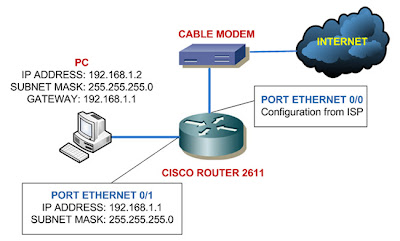
As I said in the last post, the interface ethernet 0/0 is connected to the cable modem and interface ethernet 0/1 connected to my PC like shown below:


Ethernet 0/0 is using configuration got from the ISP so we'll set it to receive IP address from ISP's DHCP server. Always remember to give no shutdown command on the interface:

router> enable
router# configure terminal
router (config) # interface ethernet 0/0
router (config-if)# ip address dhcp
router (config-if)# no shutdown

Now to set the Ethernet 0/1 port as the picture above, we can just jump right to the interface 0/1 configuration mode:

router (config-if)# interface ethernet 0/1
router (config-if)# ip address 192.168.1.1 255.255.255.0
router (config-if)# no shutdown

You have successfully configure IP addresses to your interfaces, you can check it using the following command:

router# show ip interface brief


InterfaceIP-AddressOK?MethodStatusProtocol
Ethernet0xxx.xxx.xxx.xxxYESDHCPupup
Ethernet1192.168.1.1YESNVRAMupup


The show ip interface brief is a very useful command, you would want to use it to check the status of your interfaces.

The interface column shows you all the interfaces you have, the IP-Address is of course shows the addresses of the respective interfaces.

The Method column shows whether the addresses given by a DHCP server or you configured it yourself (stored in NVRAM) or it can also shows TFTP - configuration from TFTP server.

When the status column is showing down then it indicates there is a problem with OSI Layer 2.
The protocol will show up if the interfaces are physically connected to other devices, if not they will show as down (a problem with the OSI Layer 1).
And there's also another state of the status column -administratively down - it means the interface is shutdown.
This is the most likely question you'd get in the CCNA exam.

You can read further about show ip interface brief command here.

When you finished this configuration, your router will be receiving IP address on interface 0/0 from DHCP server of the ISP, and the interface 0/1 will be ready to communicate with network 192.168.1.0

Please read also:
Configure Cisco Router to Work With Cable Internet - Part 1
Configure Cisco Router to Work With Cable Internet - Part 3
Configure Cisco Router to Work With Cable Internet - Part 4

Read more!

16 October 2008

Configure Cisco Router to Work With Cable Internet - Part 1


If you just bought your first used Cisco router, I bet one thing you want to immediately do is connecting the Cisco router to the cable internet.
I know I did, I have cable internet for my home network. Previously I used Linksys router to get my LAN connected to the internet.

Configuring Cisco router to connect to the cable internet is easy work, even if you know only the basic configuration stuff in Cisco.

I need to warn you that this configuration will be in series or else this configuration will be a very long post. And also this series will be a good chance to learn some aspects in configuring Cisco router.

All you need to do is to set the IP address of the interfaces, set the router as a DHCP server if you want it, configure NAT, and the last thing is routing. Very simple indeed.

I'm only going to show you to get your router up and running, I wont discuss about access list and other fancy stuff - that's for the next posts.
Also the devices involve in this tutorial is only the Cisco 2611 router, Motorola cable modem, and my PC. If you want to use other Cisco devices you might need to do more configuration.

In this Part 1, I'm going to review about the concept of this configuration, please look at the topology image below:

Configure IP Address of the Router's Interfaces

The router will get the ip configuration from DHCP server of the ISP, the Ethernet 0/0 port I use as the exit point to the internet.
The Ethernet 0/1 will be the port where my computer is connected. I'm going to set private IP address as the gateway for the computer.

Setting IP address of the interfaces is definitely a topic in the CCNA exam.

Configure the Router as DHCP Server

In this example I'm using the router as DHCP server, giving IP addresses to the computer along with other configuration such as subnet mask, gateway address, and the dns server ip address.

You won't be tested about setting router as DHCP Server in the CCNA exam, it will show up in the CCNP exam.

Configure NAT (Network Address Translation) in The Router

NAT is a powerful concept, you have one public IP address given by the ISP and also private IP addresses in your LAN.

What NAT will do is translate all your private IP address into the public IP address. If you're using overload - one public IP address used by many private IP address - the private IP address is converted into logical ports.

For example, if you got public IP address of 10.1.1.1, then the form of the translation might be like this 10.1.1.1:3000

NAT is also a topic in the CCNA exam and one of the thoughest that is.

Configure Routing

This example only shows the basic static routing, the router will send all request from the client (from port Ethernet 0/1) to the port Ethernet 0/0.

You surely want to learn about routing for the CCNA exam.

Please read also:
Configure Cisco Router to Work With Cable Internet - Part 2
Configure Cisco Router to Work With Cable Internet - Part 3

Configure Cisco Router to Work With Cable Internet - Part 4
Read more!

15 October 2008

Need Other Resources for Learning Cisco?


Ah, nothing like a long holiday for a tired mind, now back to blogging.

During my vacation I also took my chance browsing all over the internet, I'm surprise to see that in the internet, quite a lot of people claiming that Cisco.com didn't give them enough information about the devices in their home labs.

Sure Cisco did stop supporting some of the older devices, but they still keep the information about them including the configuration examples, etc. But maybe they did stop posting the information.

That's not what I want to post about now, just sharing my opinion. But I do want to post about some resources that provide you with the information about Cisco devices.

Two good resources are the Packet magazine and iQ magazine from Cisco, they're free to download. Too bad they stop issuing on new issues because they said they want to evolve their customer communications to a more interactive, web based model or something. Read here.

I really do prefer to read their magazines, although you can't get new issues now but you can still download them from Cisco.
Click here to browse on the older issues of Packet magazine and here for the iQ magazine back issues.

Sure they're maybe outdated reviews, for me, I can still learn a lot from them. For example I found this article about connected home from Packet magazine, making all devices in your home connected.


I actually took advantage of the article and start running my business by offering people this connected home network, turns out to be quite good.
There are many interesting articles like IPTV, VoIP, etc.

If you're aiming for cisco exams, joining in forums is important to get more information from people experienced with the exam.

Some forums that I recommend are from proprofs, sadikhov, and of course cisco. These are three of tons of cisco/networking forums out there.

The key is to find the forum best fit for you, some forums have different culture, some have very helpful people to help you while there are also grumpy people you might meet also.
Keep the list small, if you're like me, I often got confuse because I registered to many forums out there, quality not quantity.

Read more!