17 October 2008

Configure Cisco Router to Work With Cable Internet - Part 2


Setting IP Address to Cisco Router's Interfaces

We need to first set the IP address of the router's interfaces to begin configuring Cisco router to work with cable internet.

If you configure the router for the first time, connect to it using the console cable.

WARNING!!!

Not every Cisco IOS image supports the commands below, make sure your router's IOS support the commands, please read here first. If your image doesn't support it, the commands wont work.
Or check the features of your IOS image here.

Make sure your Cisco IOS image supports DHCP features (client/server).

As I said in the last post, the interface ethernet 0/0 is connected to the cable modem and interface ethernet 0/1 connected to my PC like shown below:
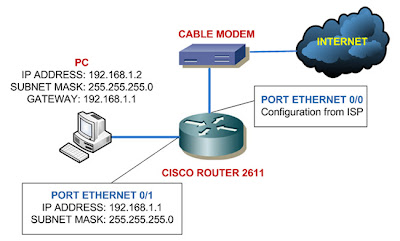


Ethernet 0/0 is using configuration got from the ISP so we'll set it to receive IP address from ISP's DHCP server. Always remember to give no shutdown command on the interface:

router> enable
router# configure terminal
router (config) # interface ethernet 0/0
router (config-if)# ip address dhcp
router (config-if)# no shutdown

Now to set the Ethernet 0/1 port as the picture above, we can just jump right to the interface 0/1 configuration mode:

router (config-if)# interface ethernet 0/1
router (config-if)# ip address 192.168.1.1 255.255.255.0
router (config-if)# no shutdown

You have successfully configure IP addresses to your interfaces, you can check it using the following command:

router# show ip interface brief


InterfaceIP-AddressOK?MethodStatusProtocol
Ethernet0xxx.xxx.xxx.xxxYESDHCPupup
Ethernet1192.168.1.1YESNVRAMupup


The show ip interface brief is a very useful command, you would want to use it to check the status of your interfaces.

The interface column shows you all the interfaces you have, the IP-Address is of course shows the addresses of the respective interfaces.

The Method column shows whether the addresses given by a DHCP server or you configured it yourself (stored in NVRAM) or it can also shows TFTP - configuration from TFTP server.

When the status column is showing down then it indicates there is a problem with OSI Layer 2.
The protocol will show up if the interfaces are physically connected to other devices, if not they will show as down (a problem with the OSI Layer 1).
And there's also another state of the status column -administratively down - it means the interface is shutdown.
This is the most likely question you'd get in the CCNA exam.

You can read further about show ip interface brief command here.

When you finished this configuration, your router will be receiving IP address on interface 0/0 from DHCP server of the ISP, and the interface 0/1 will be ready to communicate with network 192.168.1.0

Please read also:
Configure Cisco Router to Work With Cable Internet - Part 1
Configure Cisco Router to Work With Cable Internet - Part 3
Configure Cisco Router to Work With Cable Internet - Part 4

Read more!

16 October 2008

Configure Cisco Router to Work With Cable Internet - Part 1


If you just bought your first used Cisco router, I bet one thing you want to immediately do is connecting the Cisco router to the cable internet.
I know I did, I have cable internet for my home network. Previously I used Linksys router to get my LAN connected to the internet.

Configuring Cisco router to connect to the cable internet is easy work, even if you know only the basic configuration stuff in Cisco.

I need to warn you that this configuration will be in series or else this configuration will be a very long post. And also this series will be a good chance to learn some aspects in configuring Cisco router.

All you need to do is to set the IP address of the interfaces, set the router as a DHCP server if you want it, configure NAT, and the last thing is routing. Very simple indeed.

I'm only going to show you to get your router up and running, I wont discuss about access list and other fancy stuff - that's for the next posts.
Also the devices involve in this tutorial is only the Cisco 2611 router, Motorola cable modem, and my PC. If you want to use other Cisco devices you might need to do more configuration.

In this Part 1, I'm going to review about the concept of this configuration, please look at the topology image below:

Configure IP Address of the Router's Interfaces

The router will get the ip configuration from DHCP server of the ISP, the Ethernet 0/0 port I use as the exit point to the internet.
The Ethernet 0/1 will be the port where my computer is connected. I'm going to set private IP address as the gateway for the computer.

Setting IP address of the interfaces is definitely a topic in the CCNA exam.

Configure the Router as DHCP Server

In this example I'm using the router as DHCP server, giving IP addresses to the computer along with other configuration such as subnet mask, gateway address, and the dns server ip address.

You won't be tested about setting router as DHCP Server in the CCNA exam, it will show up in the CCNP exam.

Configure NAT (Network Address Translation) in The Router

NAT is a powerful concept, you have one public IP address given by the ISP and also private IP addresses in your LAN.

What NAT will do is translate all your private IP address into the public IP address. If you're using overload - one public IP address used by many private IP address - the private IP address is converted into logical ports.

For example, if you got public IP address of 10.1.1.1, then the form of the translation might be like this 10.1.1.1:3000

NAT is also a topic in the CCNA exam and one of the thoughest that is.

Configure Routing

This example only shows the basic static routing, the router will send all request from the client (from port Ethernet 0/1) to the port Ethernet 0/0.

You surely want to learn about routing for the CCNA exam.

Please read also:
Configure Cisco Router to Work With Cable Internet - Part 2
Configure Cisco Router to Work With Cable Internet - Part 3

Configure Cisco Router to Work With Cable Internet - Part 4
Read more!

15 October 2008

Need Other Resources for Learning Cisco?


Ah, nothing like a long holiday for a tired mind, now back to blogging.

During my vacation I also took my chance browsing all over the internet, I'm surprise to see that in the internet, quite a lot of people claiming that Cisco.com didn't give them enough information about the devices in their home labs.

Sure Cisco did stop supporting some of the older devices, but they still keep the information about them including the configuration examples, etc. But maybe they did stop posting the information.

That's not what I want to post about now, just sharing my opinion. But I do want to post about some resources that provide you with the information about Cisco devices.

Two good resources are the Packet magazine and iQ magazine from Cisco, they're free to download. Too bad they stop issuing on new issues because they said they want to evolve their customer communications to a more interactive, web based model or something. Read here.

I really do prefer to read their magazines, although you can't get new issues now but you can still download them from Cisco.
Click here to browse on the older issues of Packet magazine and here for the iQ magazine back issues.

Sure they're maybe outdated reviews, for me, I can still learn a lot from them. For example I found this article about connected home from Packet magazine, making all devices in your home connected.


I actually took advantage of the article and start running my business by offering people this connected home network, turns out to be quite good.
There are many interesting articles like IPTV, VoIP, etc.

If you're aiming for cisco exams, joining in forums is important to get more information from people experienced with the exam.

Some forums that I recommend are from proprofs, sadikhov, and of course cisco. These are three of tons of cisco/networking forums out there.

The key is to find the forum best fit for you, some forums have different culture, some have very helpful people to help you while there are also grumpy people you might meet also.
Keep the list small, if you're like me, I often got confuse because I registered to many forums out there, quality not quantity.

Read more!

10 October 2008

Cisco IOS Naming Convention and Features


When you decided to buy Cisco devices for a home lab, it is very important to ask the reseller about the Cisco IOS image the devices are using.

This is something that most newbies are forgetting about when buying used Cisco devices for the first time.

This should be no problem if you buy Cisco kit/home lab package, since the reseller will optimize the requirements for you, including the IOS version.

Now what exactly is the differences in Cisco IOS package names and the features they have. To list every one of them here is a very tiring work since there might be hundreds if not thousands of IOS packages with different versions and features.

What I can tell you is that the above image shows the naming convention of Cisco IOS images. You will oftenly see the above format used in the naming of IOS image.

HARDWARE

The first part is quite self explanatory, hardware is the hardware supported by the IOS.

FEATURE SET

This is where you can find out the features supported by the IOS. This is the new naming convention of Cisco IOS, some older version still use letters to describe the features. The "Legacy naming convention" can be quite confusing, so it's good they decided to change the naming convention.

Cisco distributes IOS packages according their features, take a look at the following diagram:


The higher the features set, the more features it has. You can check the features of Cisco IOS image with the tool provided by Cisco.
Access the tool at cisco site, and you can search by features, IOS image name, platform, product code, and you can even compare features between images. Great tool you should try.

For the legacy naming convention, you can find it formated as yyyy, where the y can be replaced by the following letters:

  • b - For Apple talk support
  • c - For CommServer lite (CiscoPro)
  • g - For ISDN subset (SNMP, IP, Bridging, ISDN, PPP, IPX, and AppleTalk)
  • i - For IP sebset (SNMP, IP, Bridging, WAN, Remote Node, and Terminal Services)
  • n - For IPX support
  • q - For asynchronous support
  • t - For Telco return (12.0)
  • y - For reduced IP (SNMP, IP RIP/IGRP/EIGRP, Bridging, ISDN, and PPP)
  • (c1003 or c1004)
  • z - For managed modems
  • 40 - For 40 bit encryption
  • 50 - For 50 bit encryption


MEMORY LOCATION and COMPRESSION FORMAT

This section tells you from which memory location the IOS and what format of compression it uses. Check the following for the formats:

  • f - flash
  • m - RAM
  • r - ROM
  • l - the image will be relocated at run time


And these are the compression types:

  • z - zip compression
  • x - mzip compression
  • w - “STAC” compression


MAINTENANCE RELEASE and INDIVIDUAL RELEASE

These shows the release version number of the IOS image.

RELEASE

The last part shows whether the image is T Release (new feature release identifier), S (individual release), or XR (modular packages).

For further reference you can see the complete list here and here.

I've made a mistake when I first bought my router, I didn't ask about the IOS version of the router so I ended up with a very basic IOS version not having even DHCP server feature.
You don't want to make same mistake, so get familiar with Cisco IOS naming convention.

If you already bought it, check the features supported by the image with the Cisco tool I told you above.

You need also consider the amount of DRAM of the device. The higher the version and features of an IOS, the more DRAM you need.

Read more!

Password Recovery Procedure for Cisco 2600 and 2800 Series Routers


If you buy used Cisco device for your Cisco home lab, your used router/switch configuration most likely already erased to default configuration by the reseller. But what if you got a router/switch with password in it, or you forgot the password you gave to the device.


Cisco devices have a password recovery procedure that you can use to overcome this problem, some devices might have different procedure for password recovery.

The steps that I'm showing here is for Cisco 2600 and 2800 series routers, but most routers have the common steps to follow.
Some Cisco switches series have a button on the chassis that you must press for password recovery.


WARNING!!!

The password recovery procedure will wipe out all configuration in the router/switch, it is always a good idea to backup your configuration regularly and use the backup to reconfigure the router/switch after password recovery procedure.

To recover the password first you need to enter the ROMmon mode, for 2600 and 2800 series routers you need to change the configuration register from 0x2102 to 0x2142, then reset the router.

rommon 1 > confreg 0x2142
You must reset or power cycle for new config to take effect

rommon 2 > reset

Changing the configuration register from 0x2102 to 0x2142 tells the router to ignore the configuration in the NVRAM - where you place the password for the router.

This is why you must backup the configuration file to TFTP server regularly, so you can recover the configuration file if something like this happen in the future.

Your router will reload after the "reset" command in the ROMmon mode with no configuration, so it will ask again whether you want to enter the initial configuration prompt again, just answer no to this:

Would you like to enter the initial configuration dialog? [yes/no]: no

At this point you can enter the router without providing the password, if you check with show version command you will get that the configuration register has changed:

router# show version
Cisco Internetwork Operating System Software
IOS (tm) C2600 Software (C2600-I-M), Version 12.1(2)T, RELEASE SOFTWARE (fc1)
Copyright (c) 1986-2000 by cisco Systems, Inc.
Compiled Tue 16-May-00 15:15 by ccai
Image text-base: 0x80008088, data-base: 0x80865F64

ROM: System Bootstrap, Version 11.3(2)XA4, RELEASE SOFTWARE (fc1)

Router uptime is 3 minutes
System returned to ROM by reload
System image file is "flash:c2600-i-mz.121-2.T.bin"

cisco 2611 (MPC860) processor (revision 0x202) with 20480K/4096K bytes of memory.
Processor board ID JAB0317052N (1135645455)
M860 processor: part number 0, mask 49
Bridging software.
X.25 software, Version 3.0.0.
2 Ethernet/IEEE 802.3 interface(s)
1 Serial network interface(s)
32K bytes of non-volatile configuration memory.
8192K bytes of processor board System flash (Read/Write)

Configuration register is 0x2102

Next thing is to fill in your new password or erase the password requirement from the router configuration mode. Use enable password or enable secret, saver to use enable secret.

router# configure terminal
router (config)# enable secret Cisco

Don't forget to paste your backup configuration file to the terminal and save the running configuration:

router# write memory

or

router# copy running-config startup-config

Last thing to do and the most important part is to change back the configuration register to 0x2102, or else everytime your router reloads it will ignore the configuration file.

router (config)# config-register 0x2142

You can check with show version command that your configuration register value will change to 0x2102 after reloading the router.


router# show version
Cisco Internetwork Operating System Software
IOS (tm) C2600 Software (C2600-I-M), Version 12.1(2)T, RELEASE SOFTWARE (fc1)
Copyright (c) 1986-2000 by cisco Systems, Inc.
Compiled Tue 16-May-00 15:15 by ccai
Image text-base: 0x80008088, data-base: 0x80865F64

ROM: System Bootstrap, Version 11.3(2)XA4, RELEASE SOFTWARE (fc1)

Router uptime is 3 minutes
System returned to ROM by reload
System image file is "flash:c2600-i-mz.121-2.T.bin"

cisco 2611 (MPC860) processor (revision 0x202) with 20480K/4096K bytes of memory.
Processor board ID JAB0317052N (1135645455)
M860 processor: part number 0, mask 49
Bridging software.
X.25 software, Version 3.0.0.
2 Ethernet/IEEE 802.3 interface(s)
1 Serial network interface(s)
32K bytes of non-volatile configuration memory.
8192K bytes of processor board System flash (Read/Write)

Configured from console Configuration register is 0x2142 (will be 0x2102 at next reload)

Reload the router using reload command:

router# reload

I don't think they will test you to recover password in CCNA exam, but they will ask you about the configuration register value you must change for password recovery procedure, just remember the values.

Read more!
