08 October 2008

Fastest Way to Recover or Upgrade Cisco IOS using tftpdnld


There are many articles about how to recover or upgrade your Cisco IOS, but personally I find that using tftpdnld is the fastest and easiest way to do this.

tftpdnld is a command that you can use in the ROMmon mode of Cisco devices.

Using tftpdnld you can download files directly to the Cisco routers or switches from ROMmon mode using the console cable (serial connection).

In order to use the tftpdnld command you need a TFTP server running in your computer, any TFTP server will do.
In this example I recover my Cisco IOS image for my 2611 router, but this tutorial also good for 2800 and 3800 series routers.

I need to tell you that you can use tftpdnld to download image file from TFTP server to the router but not from the router to TFTP server.

Also this command requires you to use the first LAN port in the router - in 2611 is ethernet 0/0 port like shown below.


But in 2621 router you can also use the Token Ring or Fast Ethernet port.


WARNING!!!
Use this tutorial only if you understand the effect of the commands provided and you aware the effect of the procedures shown to a production or running network!


First thing you need to do to recover or upgrade Cisco IOS is prepare your IOS image file in the TFTP server folder.

Next is to get in to the ROMmon mode of the router.

In the ROMmon prompt, you need to set up some configuration for router to TFTP server connection. In this example I use the following configuration:


Issue the "set" command in the prompt, it shows the current configuration you've made, next is to type in the following commands:

rommon 1 > set

rommon 2 > IP_ADDRESS=171.68.171.0
rommon 3 > IP_SUBNET_MASK=255.255.254.0
rommon 4 > DEFAULT_GATEWAY=171.68.170.3
rommon 5 > TFTP_SERVER=171.69.1.129
rommon 6 > TFTP_FILE=c2600-is-mz.121-2.T.bin

Make sure you got everything right and your TFTP server is connected to the first LAN Port of the router.

Before issuing the tftpdnld, Cisco docummentation tells that in 2600 and 1720 series router, the tftpdnld in ROMmon mode might report a bad checksum comparison when it loads Cisco IOS software images of Cisco IOS Software Release 12.0(2.2)T or later - it's a bug thing.

To overcome this problem you need to issue another command:

rommon 7 > TFTP_CHECKSUM=0

Next you're ready to isssue tftpdnld command, type in the command as shown below then it will show you some output, answer y to the question prompted to you.
The question shows you that the content of the flash memory will be erased and replaced by the downloaded image file.

rommon 8 > tftpdnld

IP_ADDRESS: 10.1.1.1
IP_SUBNET_MASK: 255.255.255.0
DEFAULT_GATEWAY: 10.1.1.1
TFTP_SERVER: 10.1.1.2
TFTP_FILE: c2600-is-mz.121-2.T.bin

Invoke this command for disaster recovery only.
WARNING: all existing data in all partitions on flash will be lost!
Do you wish to continue? y/n: [n]: y

Receiving c2600-is-mz.121-2.T.bin from 10.1.1.2 !!!!!.!!!!!!!!!!!!!!!!!!!.!!
File reception completed.
Copying file c2600-is-mz.121-2.T.bin to flash.
Erasing flash at 0x607c0000
program flash location 0x60440000

rommon 9 >

At this point your new image will be in the flash memory if there is no problem with the connection from TFTP server to the router.

You can verify that your image exist in the flash using the following command:

rommon 9 > dir flash:
File size Checksum File name
4603828 bytes (0x463fb4) 0x9719 c2600-i-mz.121-2.T.bin
rommon 10 >

Last thing to do is to set the boot command to tell the router that you want it to boot using the image file you just downloaded:

rommon 10 > boot flash:c2600-i-mz.121-2.T.bin
program load complete, entry point: 0x80008000, size: 0x51c0dc
Self decompressing the image : #################################################
##################################
...

That's it you just successfully recover your Cisco IOS image, check the new image using the show version from the router prompt:

Router2611>sh version
Cisco Internetwork Operating System Software
IOS (tm) C2600 Software (C2600-I-M), Version 12.1(2)T, RELEASE SOFTWARE (fc1)
Copyright (c) 1986-2000 by cisco Systems, Inc.
Compiled Tue 16-May-00 15:15 by ccai
Image text-base: 0x80008088, data-base: 0x80865F64

ROM: System Bootstrap, Version 11.3(2)XA4, RELEASE SOFTWARE (fc1)

Router2611 uptime is 1 minute
System returned to ROM by reload
System image file is "flash:c2600-i-mz.121-2.T.bin"

cisco 2611 (MPC860) processor (revision 0x202) with 22528K/2048K bytes of memory.
Processor board ID JAB0317052N (1135645455)
M860 processor: part number 0, mask 49
Bridging software.
X.25 software, Version 3.0.0.
2 Ethernet/IEEE 802.3 interface(s)
1 Serial network interface(s)
32K bytes of non-volatile configuration memory.
8192K bytes of processor board System flash (Read/Write)

Configuration register is 0x2102


Read more!

TFTP Server for Newbies


TFTP or Trivial File Transfer Protocol can be a very useful network management tool. Although it's a simplified version of FTP, but because of that simplicity it wins the heart of all network engineers.


You can use TFTP server for numerous purposes when relating it with network devices.
You can use it for uploading or downloading Cisco IOS or other network vendors' operating systems, backup configuration files, or even run firmwares or operating system over the network for IP Phones, network devices, etc. without storing them in the devices.

I think most if not all of the professionally managed networks are definitely using TFTP servers.

I quoted from wikipedia about the details and features of TFTP Servers:

  • It uses UDP port 69 as its transport protocol (unlike FTP which uses TCP port 21).
  • It cannot list directory contents.
  • It has no authentication or encryption mechanisms.
  • It is used to read files from, or write files to, a remote server.
  • It supports three different transfer modes, "netascii", "octet" and "mail", with the first two corresponding to the "ASCII" and "image" (binary) modes of the FTP protocol; the third is obsoleted by RFC1350.
  • The original protocol has a file size limit of 32 MB, although this was extended when RFC 2347 introduced option negotiation, which was used in RFC 2348 to introduce block-size negotiation in 1998 (allowing a maximum of 4 GB and potentially higher throughput). If the server and client support block number wraparound, file size is essentially unlimited.
  • Since TFTP utilizes UDP, it has to supply its own transport and session support. Each file transferred via TFTP constitutes an independent exchange. That transfer is performed in lock-step, with only one packet (either a block of data, or an 'acknowledgement') ever in flight on the network at any time. Due to this lack of windowing, TFTP provides low throughput over high latency links.
  • Due to the lack of security, it is dangerous over the open Internet. Thus, TFTP is generally only used on private, local networks.


You can find many free TFTP servers in the internet, most popular ones are:

WinAgents TFTP Server
TFTPD32
SolarWinds TFTP Server
Kiwi CatTools - Network tools collection including TFTP Server

Personally I use the SolarWinds TFTP Server, don't get me wrong, every TFTP server you can find is easy to install and configure. I just use the one from SolarWinds because I have been using it from a very long time ago.

Up there in the post is the image of SolarWinds TFTP server when I used it to upload IOS image for recovery.

To use a TFTP server is fairly easy, just make sure your router can reach the computer you use for TFTP server, run the TFTP service in your computer, provide a space for placing your files to upload or download, and run the copy command from the router.

Read more!

07 October 2008

Router Stuck in ROMMON Mode


One time in a project, I worked on Cisco Catalyst 6500 series, it's one of the biggest switches you can find in the market, not to mention very expensive too.

The thing is it was using CatOS instead of IOS, the client only want to use IOS. CatOS is another flavor of Cisco Operating System which uses a set based commands. Meaning when you want to configure something the command usually use "set" as the first command.

So I upgraded the image to IOS, I had to change several switches since they were using quite a lot of those switches.

Then the problem came, one of the switches stuck in the ROMMON mode. It's not showing the normal switch > prompt but only the rommon 1 > prompt.

This is not a serious problem, I only forgot to change back the configuration register value.

You might have experienced this before, or in case you find this problem in the future, lucky you got in this post.

When a router/switch stuck in ROMMON mode, the first thing you need to check is the configuration register value.

The normal operation configuration register value is 0x2102, you can verify the value using the confreg command in the ROMMON prompt, or using show version in the normal prompt.

Here is the output you get if you have no problem with the configuration register:

rommon 1 > confreg


Configuration Summary
enabled are:
load rom after netboot fails
console baud: 9600
boot: image specified by the boot system commands
or default to: cisco2-C2600

do you wish to change the configuration? y/n [n]:

And this is the output if you have the wrong configuration register:

rommon 2 > confreg

Configuration Summary
enabled are:
load rom after netboot fails
console baud: 9600
boot: the ROM Monitor

do you wish to change the configuration? y/n [n]:

With the confreg command, you'll also prompted if you want to change the configuration register value. Type y if you want to change it or type n or press enter if you want to leave it.

If you type y, you'd be taken to a series of questions, just answer no to all but the change the boot characteristics, set the value on the next prompt to 2.


rommon 2 > confreg

Configuration Summary
enabled are:
load rom after netboot fails
console baud: 9600
boot: the ROM Monitor

do you wish to change the configuration? y/n [n]: y
enable "diagnostic mode"? y/n [n]:
enable "use net in IP bcast address"? y/n [n]:
disable "load rom after netboot fails"? y/n [n]:
enable "use all zero broadcast"? y/n [n]:
enable "break/abort has effect"? y/n [n]:
enable "ignore system config info"? y/n [n]:
change console baud rate? y/n [n]:
change the boot characteristics? y/n [n]: y
enter to boot:
0 = ROM Monitor
1 = the boot helper image
2-15 = boot system
[0]: 2

Configuration Summary
enabled are:
load rom after netboot fails
console baud: 9600
boot: image specified by the boot system commands
or default to: cisco2-C2600

do you wish to change the configuration? y/n [n]: n
You must reset or power cycle for new config to take effect

Reset the device using the following command:

rommon 3 > reset

With the above steps, your Cisco device should be running normal again but if it's not, that means the device might unable to find the valid IOS image. This can happen because of mistype or even corrupted image file.

Verify first that you have a valid IOS image using:

rommon 3 > dir flash:
File size Checksum File name
3114612 bytes (0x2f8674) 0x7612 c2600-i-mz.113-9.T

There you can see I have an IOS image c2600-i-mz.113-9.T, then set the device to boot from the image using boot flash: command followed by the name of the IOS image.

rommon 2 > boot flash:c2600-i-mz.122-10b.bin
program load complete, entry point: 0x80008000, size: 0x51c0dc
Self decompressing the image : #################################################
##################################

It will decompress the image and start loading the device normally.

Related to the CCNA exam, the most common question for configuration register is the default value of the confreg which is 0x2102 and the value needed to disregard the content of the NVRAM (for password recovery) which is 0x2142

Read more!

05 October 2008

ROMMON in Cisco


If you have worked with Cisco devices for some time, you must have heard about ROMMON or ROM Monitor.

ROMMON or also known as bootstrap program is you can say a mini operating system in the Cisco devices that helps to initialize the processor hardware and boot the operating system software (Cisco IOS).

Since it's only a mini OS that has a very limited set of commands you can't do any configuration such as configuring routing, ip addressing, etc from ROMMON.

But the power of the ROMMON is that you can do very useful things such as password recovery procedure when you forgot your password to the devices, downloading softwares through serial connection, and upgrading your Cisco IOS.

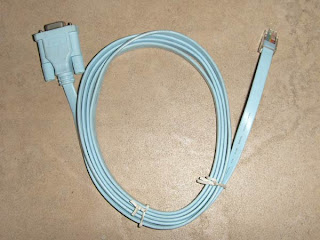
Now why did I put an image of console cable up there? It's because you can only access the ROMMON using the console connection i.e. through terminal monitor.

You can access the ROMMON mode by changing the configuration register of the device using the break button on your keyboard.
Or if you're using laptops, you usually have limited set of keys in the keyboard right? So you have to use the Ctrl + Function Button + Break Button.

As quoted from the Cisco docummentation:

Break (system interrupt) is always enabled for 60 seconds after the router reboots, regardless of whether it is configured on or off in the configuration register. During this 60-second window, you can break to the ROM monitor prompt by pressing the Break key.


After issuing the break command, you'll be taken to the following screen (might different on all devices):

System Bootstrap, Version 11.3(2)XA4, RELEASE SOFTWARE (fc1)
Copyright (c) 1999 by cisco Systems, Inc.
TAC:Home:SW:IOS:Specials for info
C2600 platform with 24576 Kbytes of main memory

program load complete, entry point: 0x80008000, size: 0x2f8558
Self decompressing the image : ##############################PC = 0xfff0a530, Vector = 0x500, SP = 0x817ff8b0

monitor: command "boot" aborted due to user interrupt
rommon 1 >

As I said before, you can't do anything much from the ROMMON mode, let's see what commands are available using the ? command:

rommon 1 > ?
alias set and display aliases command
boot boot up an external process
break set/show/clear the breakpoint
confreg configuration register utility
cont continue executing a downloaded image
context display the context of a loaded image
cookie display contents of cookie PROM in hex
dev list the device table
dir list files in file system
dis display instruction stream
dnld serial download a program module
frame print out a selected stack frame
help monitor builtin command help
history monitor command history
meminfo main memory information
repeat repeat a monitor command
reset system reset
set display the monitor variables
stack produce a stack trace
sync write monitor environment to NVRAM
sysret print out info from last system return
tftpdnld tftp image download
unalias unset an alias
unset unset a monitor variable
xmodem x/ymodem image download

If you want to go back to the router/switch mode just use the following command:

rommon 1 > reset


Read more!

03 October 2008

Cisco Device Bootup Steps


To understand how to configure routers is very important, but it's also important to understand what steps are involved when a Cisco router/switch is booting up.

This knowledge can help you get to know your Cisco devices better, plus there are questions related to the boot up steps in the CCNA exam.

First, we know that Cisco router is using IOS or Internetworking Operating System, which is a software that controls all the routing and switching functions in a Cisco network device.

There are some steps need to be done before loading the Cisco IOS and get your router/switch up and running.

1. Do POST

When first turned on, the cisco device performs POST or Power-On Self Test that executes diagnostics from the ROM on all hardware modules in the device.
It will verify all the basic operations of CPU, memory, and interface ports.

2. Loading the Bootstrap

Before loading the IOS to the RAM, Cisco device loads the bootstrap first. Bootstrap is a simple set of instructions that tests hardware and then initializes the IOS for operation.
Bootstrap is located at the device's ROM.

At this point, your console terminal will show you the following text, but the text will vary depends on the device you're using, interfaces available, and version of the IOS.

System Bootstrap, Version 11.3(2)XA4, RELEASE SOFTWARE (fc1)
Copyright (c) 1999 by cisco Systems, Inc.
TAC:Home:SW:IOS:Specials for info
C2600 platform with 24576 Kbytes of main memory

There you can see I'm using Cisco 2600 series router with IOS version 11.3(2), and you can see also the available RAM/DRAM.

After this information show up, you might also see the statement:

NVRAM invalid, possibly due to write erase

The above statement might show up if you're bought used Cisco device, don't worry it's not a malfunction or anything.
It only tells us that this router has not been configured yet or that the NVRAM has been erased, just do some configuration and save it, then the statement will go away.

3. Loading the IOS

After finished with the bootstrap, the device will try to search for the valid IOS.
You can place the IOS on a number of places and the device will search the IOS based on the configuration register. The default value of the configuration register is 0x2102 which tells the device to load the IOS from the flash memory.

The normal place for an IOS is the flash memory of the device, but you can also place the IOS on other network devices and load them through TFTP.
The console terminal then shows the decompression process of the image:

program load complete, entry point: 0x80008000, size: 0x2f8558
Self decompressing the image : ###############################################
###############################################
###############################################
###############################################
###############################################
################################## [OK]

Depending on the size of the IOS image, you'd get a longer # mark. I've work with the high end Cisco devices such as Catalyst 6500 series and it takes a quite long time to decompress the image, some of the image size could take more than 100Mb.

If after five attempts a valid IOS image is not found, the router will take you to the ROM mode (ROMMON).
More on ROMMON on the next post.

After the device found the IOS, it will load it to the RAM where it stays there as long as the router is on and lists all the available hardware and software in the router and show them to the console terminal screen.

Cisco Internetwork Operating System Software
IOS (tm) C2600 Software (C2600-I-M), Version 11.3(9)T, RELEASE SOFTWARE (fc1)
Copyright (c) 1986-1999 by cisco Systems, Inc.
Compiled Wed 07-Apr-99 15:43 by pwade
Image text-base: 0x80008084, data-base: 0x80564C88

cisco 2611 (MPC860) processor (revision 0x202) with 18432K/6144K bytes of memory.
Processor board ID JAB0317052N (1135645455)
M860 processor: part number 0, mask 49
Bridging software.
X.25 software, Version 3.0.0.
2 Ethernet/IEEE 802.3 interface(s)
1 Serial network interface(s)
32K bytes of non-volatile configuration memory.
8192K bytes of processor board System flash (Read/Write)

4. Load the Configuration File

Next step is to load the configuration file. The device will start looking the configuration file in the NVRAM, loads them to the RAM and executes them one line at a time.
The configuration file tells the router of the configuration you've done to it such as routing, ip addresses of the interface ports, etc.

If the device can't find the configuration file in the NVRAM, such case can be found when you freshly configure the device, it will try to search the available TFTP server in your network.
If no TFTP server found, it will then display the setup dialog on the console terminal screen.

Would you like to enter the initial configuration dialog? [yes] :

The option enclosed in the brackets [ ], shows the default option, you can just press enter to answer yes or type no to enter the configuration manually.

That's it, four bootup processes that you can easily remember. In CCNA exam, you'd probably be asked on these steps, what will the device do when can't find something here, and what it'll try next, etc.

There are some terminologies you should be familiar with, those are:

ROM - a read only memory that holds the bootstrap of the device and a limited version of Cisco IOS to run a very limited functions usually used for recovery and update.

RAM/DRAM - a volatile memory which will be deleted whenever the device is rebooted or shutdown,
RAM is used to hold the running IOS and the running configuration of the device.

NVRAM - a non-volatile memory which will not be deleted even if the device is rebooted or shutdown,
NVRAM is used to hold the saved configuration (startup configuration) which will be loaded when system bootup to the RAM.

Flash - Also a non-volatile memory used to store the IOS. On higher end Cisco devices, the flash memory is external, pretty much like memory you used for your digital camera (SIMM or PCMCIA).
Very convinient since you can upgrade it as you need.

TFTP Server - Trivial File Transfer Protocol, a simplified version of FTP that you can use to transfer file over the network.

ROMMON - More on this on the next post

Read more!